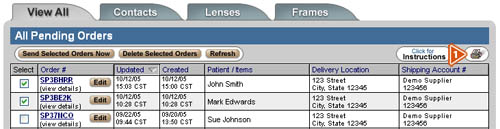
Pending Orders | Send, Delete, View, & Edit
Once you have selected a pending order to view, you can send orders to suppliers, delete, view, or edit the order.
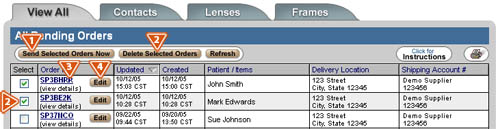
- Sending a Pending Order—Check the “Select” box corresponding to the order(s) you want to send, and click the “Send Selected Orders Now” button (you can select more than one order to send at a time).
- Deleting a Pending Order—Check the “Select” box corresponding to the order(s) you want to delete, and click the “Delete Selected Orders” button (you can select more than one order to delete at a time).
- Viewing Order Details—Click the Order Number in blue next to the select box, and an order summary screen will appear.
- Editing a Pending Order—Click the “Edit” button to the right of the VisionWeb order number and this will take you to the ordering engine to edit the order.
- To print the page, click the printer icon button located at the top of the screen, to the right of the “Click for Instructions” button.
QuickTip: In all of the pending order screens, you can sort the orders based on order number, date updated, date created, patient/items, delivery location, and shipping account number by clicking on the corresponding header at the top of each column.