 My Account | Supplier Accounts
In the Supplier Accounts section, Admin users can add and delete suppliers. To view the current list, click the “List of Suppliers” button in the top navigation bar of the VisionWeb home page at: www.visionweb.com. VisionWeb works with your existing supplier accounts. To add a supplier that you do not currently have an account with, you will need to first contact that supplier for an account number. Phone numbers for VisionWeb suppliers can be viewed from the Add New Supplier Page.
Once you have an account number from the supplier, you can add it to your list of suppliers:
- Click the “My Account” button in the top navigation bar.
- Click the “Supplier Accounts” button in the left navigation bar.
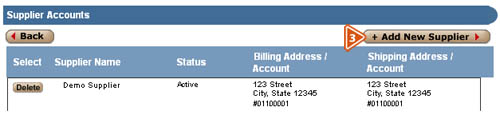
- Click the “+Add New Supplier” button at the top of the screen.
- On the Add New Supplier page, in the Supplier Details section, select the category of your supplier (contacts, frames, or lenses) from the drop-down menu.
- Next, select the supplier you wish to add from the “Supplier” drop-down menu (note that suppliers highlighted in grey and marked “Coming Soon” are not yet available).
- Choose your supplier’s location from the “Location” drop-down menu.
- Complete the form in the “Account Details” section. (You must enter valid account numbers in the “Billing Account Number” and “Shipping Account Number” fields. Entries such as “same” are not valid.) Fields marked with a red asterisk are required.
- Once you have completed the form, click the “Submit Request” button to submit your request for account validation.

All suppliers normally validate accounts within 24 hours or less. If you have questions about your account validation, please call VisionWeb Customer Service at 1-800-874-6601.
To delete a supplier account from VisionWeb:
- Click the “My Account” button in the top navigation bar.
- Click the “Supplier Accounts” button in the left navigation bar.
- Select the supplier account you wish to delete, and click the corresponding “Delete” button.
- A pop-up box will appear to remind you that all orders under this account in pending orders and archives will be deleted if you delete the account.
- Click “OK” and the supplier account will be deleted; click “Cancel” to return to the Supplier Accounts screen.
Note: that deleting a supplier account will only remove it from your VisionWeb account. If you wish to cancel your account with a supplier, you must contact the supplier directly.