 Order Status | Sorting Orders
Orders are sorted by default by the most recent submission date. Using the sorting features, you can sort orders by the type of order, submission date, or patient last name.
Product Type Tabs – Product Type tabs will appear for each type of order, even if you do not place a certain type of order. (For example, if you only order spectacle lenses, the Contacts, Frames and Stock tabs will still appear, however, you will only be able to sort by the Lenses or View All tab. In this case, sorting by the Lenses or View All tab will yield the same results).
- View All – Select this tab to view all orders
- Contacts – Select this tab to view only contact lens orders
- Lenses – Select this tab to view only spectacle lens orders
- Frames – Select this tab to view only frame orders
- Stock – Select this tab to view only stock lens orders.
NOTE: This tab will only appear if stock lens ordering is available to you.
Sort By – By default, the most recent orders will be displayed first, as determined by ascending Submission Date. You can select to sort your orders as follows:
- Submission Date – Descending – The newest orders will be displayed first
- Submission Date – Ascending – The oldest orders will be displayed first
- Last Name – Descending – The orders will be displayed with patient last name in reverse alphabetical order (Z-A)
- Last Name – Ascending – The orders will be displayed with patient last name in alphabetical order (A-Z)
NOTE: Numbers entered into the Patient Last Name field will be listed first when “Last Name – Descending” is selected and last when “Last Name – Ascending” is selected.
Page View – The results of the search and/or sort will be displayed 10 orders per page by default.
- Results per Page Drop-Down – If you wish to view more results per page, please select a number (10, 25, 50, 75, and 100) in the Results per Page drop-down menu. The total number of results of the search and/or sort will be displayed to the left of number per page to display.
- Page Drop-Down – To navigate through the pages of results, click the desired page number from the Page dropdown, or click the “>>” button to go to the next page. Click the “<<” button to return to the previous page.
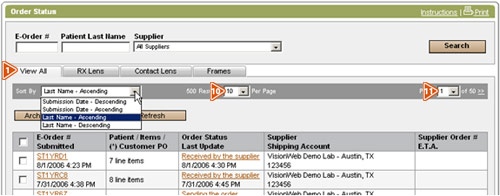
Columns – The results of the search or sort will be displayed in an organized table format with 7 columns that contain the pertinent order information.
- E-Order # / Submitted – If you would like to view the details of the order, click on the E-Order Number for the selected order. This will open the Order Details page. Underneath the E-Order Number is the date that the order was submitted. Orders with the most recent submitted date will appear at the top of the list by default.
- Patient / Items / Customer PO – The patient’s name will appear in this column if the order is specific to a patient and the Item name will appear if only one item is associated with the order. If the order is not specific to a patient, or if more than one item is associated with the order, the total number of items will be displayed only.
- Order Status – The status of the order reflects the information that the supplier provides specific to where the order is in process. NOTE: Order status and the level of detail provided vary by supplier. Please contact your supplier directly with any questions about the status of an order.
- Supplier / Shipping Account – The shipping account that is specific to your account with the supplier will be displayed here. You will note different shipping account numbers for your different suppliers. Your supplier name will be listed here as well.
- Supplier Order # / E.T.A – The supplier order number is assigned to the order once it has been received by the supplier. NOTE: If the Supplier Order # field is blank, the supplier has not yet received the order, although it has been submitted. The estimated time of arrival to the shipping destination is displayed under the Supplier Order #, if that information is available from the supplier.